
How to Use the Manager's Desk
A step-by-step guide for shift members and managers, from exporting a monthly report to compiling the whole team.
Who this guide is for
This guide breaks the monthly process into two parts: what each shift member does in the app, and what managers do with the incoming files. Read Part A if you're a shift member submitting your hours; read Part B if you're the person compiling the team's reports.
The whole process in one picture
📱
1. Export
Each shift member exports their monthly report from the app
📧
2. Send
They email the file to their manager
🗂️
3. Compile
The manager drops every file into the Manager's Desk
✅
4. Submit
Once checked, the compiled file goes to payroll
That's the whole process. The steps below simply provide the detail for each stage.
Which export format should I use?
The app can export the same monthly report in three different formats. They serve different purposes — check with your manager which format(s) your company actually needs before you export. This applies whether you're the person exporting the report or the person receiving the file.
CSV
A machine-readable file, not meant to be opened and read directly. It's built for importing into payroll software, and it's the only format the Manager's Desk can read. If your employer compiles reports with the Manager's Desk, or imports hours directly into a payroll system, this is the file they need.
Print (PDF)
A formatted, human-readable report with signature lines for both employee and manager. Use this when a physical, signed paper copy is required — for a manual sign-off process or as a paper record kept on file. The Manager's Desk can't read this format; it's for people, not for compiling.
Excel
The same report as the PDF, but as a spreadsheet. It's useful if HR or payroll wants to open it on a computer to sort, filter, or manually check figures without going back into the app. Like the PDF, this isn't read by the Manager's Desk — it's for manual review, not compiling.
Companies vary in what they require: some only want the CSV for direct payroll import, some want a signed PDF for their records, and some want both, plus an Excel copy for manual review. Sending more formats than needed causes no harm — sending the wrong format, or missing one that's needed, can hold up processing. When in doubt, ask your manager which formats they need.
For Every Shift Member
Repeated by each employee every month (or at year-end for an annual report).
- 1 Install the Shift Show app. Every shift member needs the app installed on their own device before this process can begin.
- 2 At month-end, open the monthly report. In the app, go to Tracking → Monthly Report (or Annual Report at year-end).
- 3 Check the report settings, if needed. Under Settings → HR Reports, confirm that your name, employee number, company name, and the counting rules your employer uses are set up correctly before you rely on the figures.
- 4 Export the report in whichever format(s) your employer needs. CSV, Print (PDF), and Excel each serve a different purpose — see "Which export format should I use?" above if you're not sure which one to choose. If a physical process is used, print the PDF, check the hours, and sign it — that signed sheet can serve as proof of hours worked on its own, with no digital import needed.
- 5 Send the file to your manager — by email is usually easiest. Send it exactly as exported; don't rename, edit, or reformat it, since the Manager's Desk expects the file to look exactly as the app produced it.
For the Manager (if CSV is used)
Once every shift member's file for the period has been received.
- 6 Save every CSV into one folder on your computer or laptop — one file per employee, all for the same pay period.
- 7 Open the Manager's Desk in a web browser. Nothing needs to be installed, and nothing you add is ever uploaded to our servers — it all runs on your own computer.
- 8 Add every employee's CSV file. Drag and drop them onto the page, or click the drop zone to browse and select them all at once.
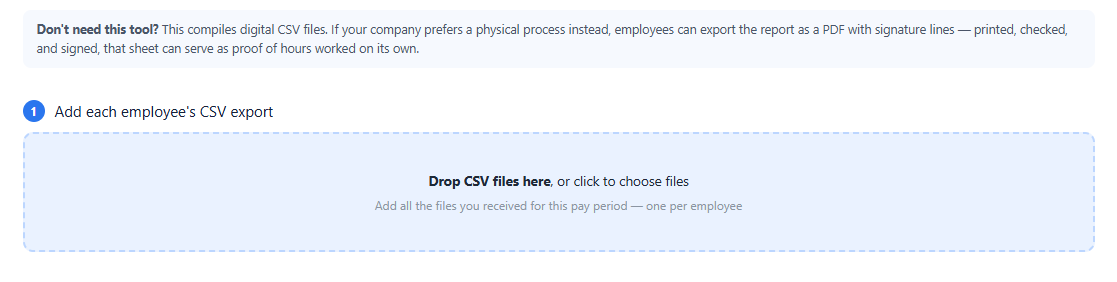
- 9 Fill in the optional checks, if useful. Paste in your expected employee roster and the pay period's start and end dates. This lets the tool flag a missing employee, a duplicate submission, or dates outside the period before you rely on the figures.
- 10 Click "Verify & Compile."
- 11 Review "Issues to check before sending to HR." Anything listed here should be confirmed and verified with the relevant employee — for example, by asking them to re-export their report — before you proceed.
- 12 Review the compiled summary table. This gives you one overview of every employee's hours, overtime, Sunday time, public holiday time, and leave for the period.
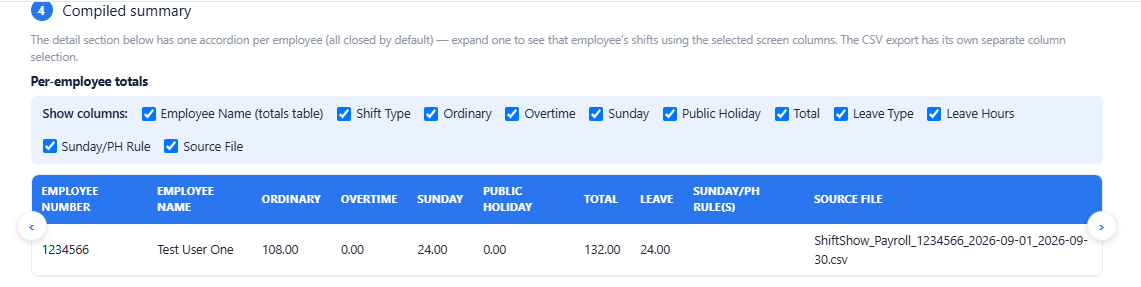
- 13 Select the required fields. Based on your requirements and the required fields for your payroll software, select the fields you want to export in the CSV.
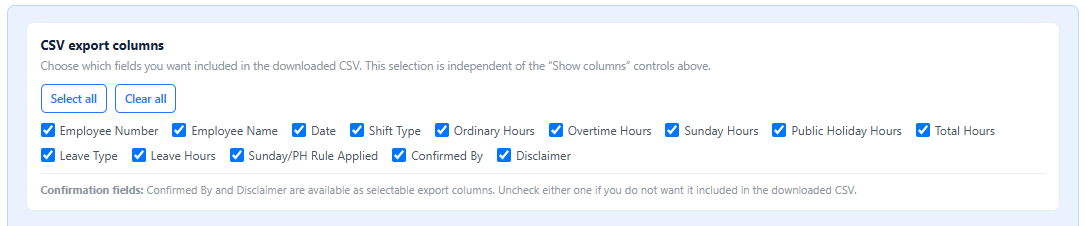
- 14 Enter your name and tick the confirmation checkbox. This is required before you can download anything and records who reviewed the figures.

- 15 Click "Download Full Detail CSV" to save the combined file to your computer. It has the same columns as each employee's original export, in the same order and with the same values, plus two extra columns at the end — Confirmed By and Disclaimer — which your payroll system's import tool can simply skip, the same as any other column it doesn't need.
- 16 Verify the figures before submitting to payroll. Check every total against each employee's contract or your official records. See our Payroll CSV Guide for help mapping the columns into your payroll system.
- 17 Once you're done, you can close the browser tab. The tool doesn't store your files, so you'll need to upload them again if you want to recreate the compilation later.
For the Manager (if PDF is used)
Once every shift member's file for the period has been received.
If you are using PDFs, you do not need the Manager's Desk.
- 6 Save every PDF into one folder on your computer or laptop — one file per employee, all for the same pay period.
- 7 Review each employee's report. Check their hours, overtime, Sunday time, public holiday time, leave, and all other relevant information.
- 8 Print and sign. Print each employee's PDF and sign it with the employee to verify the reported hours.
- 9 Keep the reports as records. File them according to your company's guidelines for future reference and audit purposes.
Before you rely on any figure
The Manager's Desk and CSV export are convenience tools, not a certified payroll system. They check what can be checked mathematically, but all figures originate from what the employee enters in the app. Shift Show does not verify the data — we have no access to individual entries to do so. It is the business's sole responsibility to ensure that the figures are correct. Always verify totals against contracts, official schedules, and payroll records before taking action. Full details are available in our Terms of Use.
Questions about this process that this guide didn't answer? Please use our Business FAQ page.